Part 5 of 8 · Basic Python is enough · Tested with Python 3.12.4, LangGraph 1.2.16 and SQLite checkpointer 3.1.2.
Store a review checkpoint in SQLite, end the process, and continue the same ticket with an explicit approval or rejection.
A printed message is not a real pause
Earlier, our human branch returned “A mentor must review this request.” That completed the run. It did not preserve a suspended step waiting for a decision.
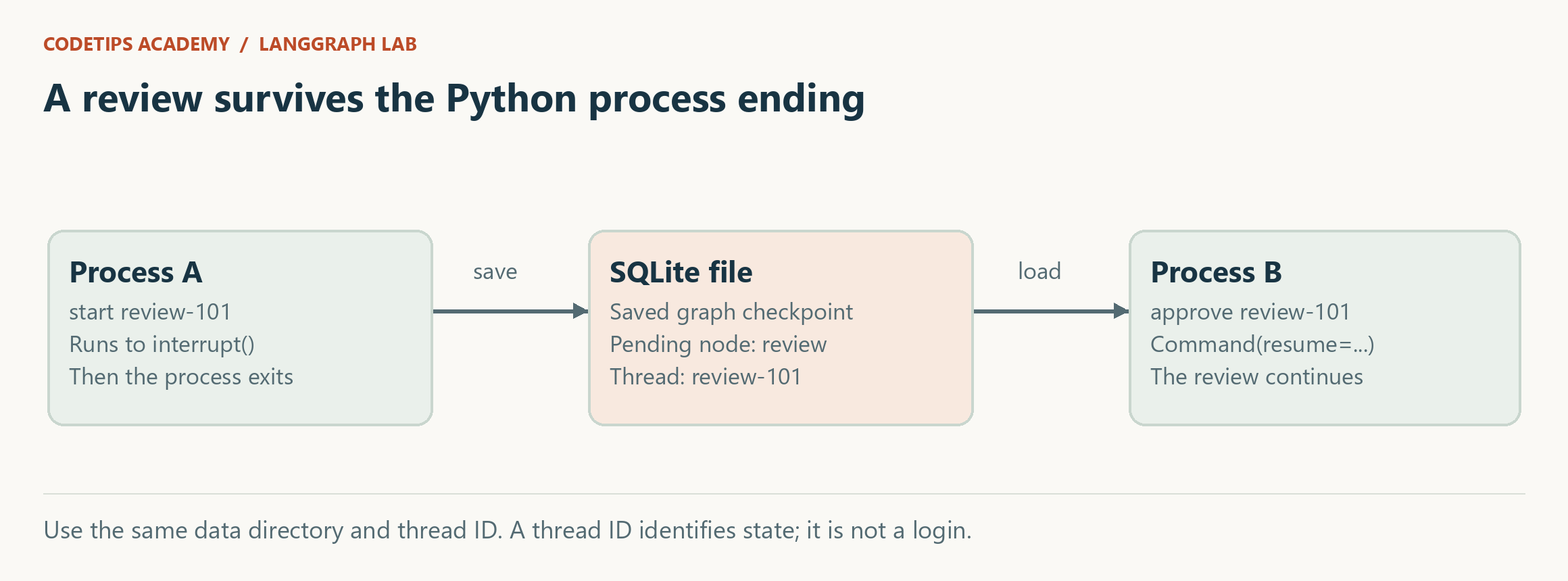
Now we will build a real pause. One command creates a review and exits. A later command reads the saved state. Another command supplies approval or rejection and lets execution continue. You can close the terminal between these commands because the state lives in a local SQLite file.
We keep this lesson's graph small: START -> review -> END. The review contains a fixed draft. The final application will place the same review mechanism after retrieval and drafting.
What a checkpoint gives this project
Think of a checkpoint as a saved snapshot that the workflow can use later. It contains more than a text transcript: the application also needs to know which step is pending. A thread ID identifies the workflow history to load. Checkpointers preserve thread-scoped graph state; they are distinct from a separate long-term memory store. Persistence overview
For this local project, SQLite stores the checkpoints in a file. You do not need to install or manage a database server. The separate langgraph-checkpoint-sqlite dependency provides the saver used in the runnable lesson.
Add an interrupt inside a node
Here is the review function:
def review(state):
    decision = interrupt({"reply": state["reply"], "notice": "No email will be sent."})
    if not isinstance(decision, dict) or type(decision.get("approve")) is not bool:
        raise ValueError("approve must be a boolean")
    return {"approved": decision["approve"]}
The payload contains the draft and a clear notice about what approval means. In the final workflow, the payload also includes the retrieved documents so the reviewer can inspect the actual evidence.
When execution reaches interrupt, the graph pauses. The call does not immediately return an ordinary yes/no value. Later, a resume command provides that value. LangGraph restarts the interrupted node, and the matching interrupt receives the supplied decision. Interrupt and resume behavior
This replay behavior explains an important design choice: the function performs no queue write before the interrupt. Its work before pausing only constructs a dictionary from existing state. Placing a side effect there could repeat it when the node runs again.
We also validate the decision. bool("false") is true in Python because a nonempty string is truthy. That is not an acceptable interpretation of a review decision. The check type(... ) is bool requires an actual JSON/Python boolean, so a string cannot silently approve a reply.
Compile with the saver
The lesson builder is:
def build(saver):
    builder = StateGraph(State)
    builder.add_node("review", review)
    builder.add_edge(START, "review")
    builder.add_edge("review", END)
    return builder.compile(checkpointer=saver)
Generate and explain the graph built by this code
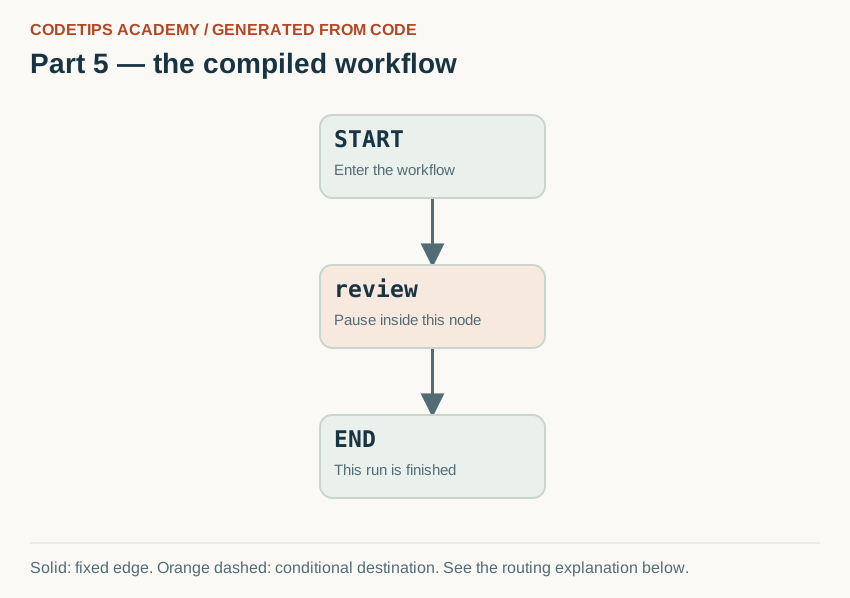
The diagram below is generated from this lesson's compiled get_graph() nodes and edges. Node positions are chosen for readability; the connections come from the Python graph, rather than being copied from a generic illustration.
After installing the project, run this command from its root:
python tools/render_graphs.py --part 5
It writes assets/generated/part-05.svg (the image), .mmd (Mermaid source), and .json (the captured nodes and edges). Rendering is local and does not call a model or a remote image service. If you add nodes, update the layout positions in the renderer as well.

Read the arrows with the code
- START → review: The graph reaches one node containing the interrupt call.
- The pause inside review: interrupt() is a Python call inside the node, not a separate node drawn in the graph. The checkpoint preserves this pending review.
- review → END: After Command(resume=...) supplies a valid decision, the node returns approved and finishes. Neither approval nor rejection sends email in this lesson.
Solid lines are fixed transitions. Orange dashed lines mark possible conditional destinations; the routing function chooses the destination for a particular run. A node can contain several Python operations that are not separate graph nodes.
In the command-line program, a context manager opens SqliteSaver.from_conn_string(...), builds the graph with it, and keeps the connection alive while executing or inspecting the graph. The with block ends after that command finishes.
The data directory defaults to .runtime under your current working directory. Run the commands from the repository root. The lesson uses lesson5.sqlite, while the final application uses separate checkpoint and outbox files.
Pause, exit, inspect, resume
Use a fresh ID:
python lessons/05_approval/main.py start --id review-101
Expected result:
{
  "state": {
    "reply": "Check your Python environment.",
    "approved": false
  },
  "next": ["review"]
}
The process has exited, but next identifies a pending review. Open another terminal, return to the same directory, and use the same environment:
python lessons/05_approval/main.py status --id review-101
python lessons/05_approval/main.py approve --id review-101
After approval, approved is true and next is empty. The small graph has finished. No email was sent and this isolated lesson has no outbox at all.
To inspect rejection, start a different review and reject it:
python lessons/05_approval/main.py start --id review-102
python lessons/05_approval/main.py reject --id review-102
This run ends with approved false. A subsequent status still finds the saved result. An empty pending-node list means the graph is finished, not that the database forgot the ticket.
Resume the saved run; do not start it again
Inside the implementation, approval uses:
graph.invoke(Command(resume={"approve": True}), config)
The configuration contains the same thread ID used at the start. A different ID refers to a different history; it cannot magically locate the pending review. Passing a new input dictionary is also not how this CLI resumes approval. The CLI deliberately provides separate start, status, approve, and reject operations.
Starting the same ID again returns an error rather than mixing a new question into an old workflow. Approving an already finished review also returns an error. These are application checks around the graph, and the tests exercise them in separate Python processes.
Troubleshooting and boundaries
If status cannot find a ticket, check the ID and data directory first. Running from a different directory can create a different .runtime folder. The CODETIPS_DATA_DIR environment variable can explicitly point both commands at the same folder.
If you delete the checkpoint file, you have removed the state needed to resume. If you change node names or state meaning while old reviews are pending, treat that as a workflow-version change; this beginner project does not implement checkpoint migrations.
A thread ID is an identifier, not authentication. This local CLI has no multi-user authorization layer. Building a web service around it would require access checks before allowing someone to inspect or approve a ticket.
For practice, start two IDs, approve one, and leave the other paused. Explain how their state differs. In article 6, we will connect approval to a local outbox and examine what happens when operations fail or repeat.
This is an educational project using fictional workshop notes and synthetic tickets. It does not access the real CodeTips Academy website or send email. Downloadable code is provided above. GitHub source links will be added after the repository is published.